Syncing files in SharePoint through OneDrive allows you to access files in Windows File Explorer and work more efficiently.
However, syncing large folders or entire document libraries can lead to storage issues, sync failures, and performance problems.
This guide explains what should be synced, and what should not be synced.
Why This Matters
Improper syncing -- especially syncing large root folders like “Properties” -- can result in:
- Large amounts of data downloading to your computer
- Local storage running out
- OneDrive sync errors or delays
- Files not updating properly for other users
Managing Files Using File Explorer
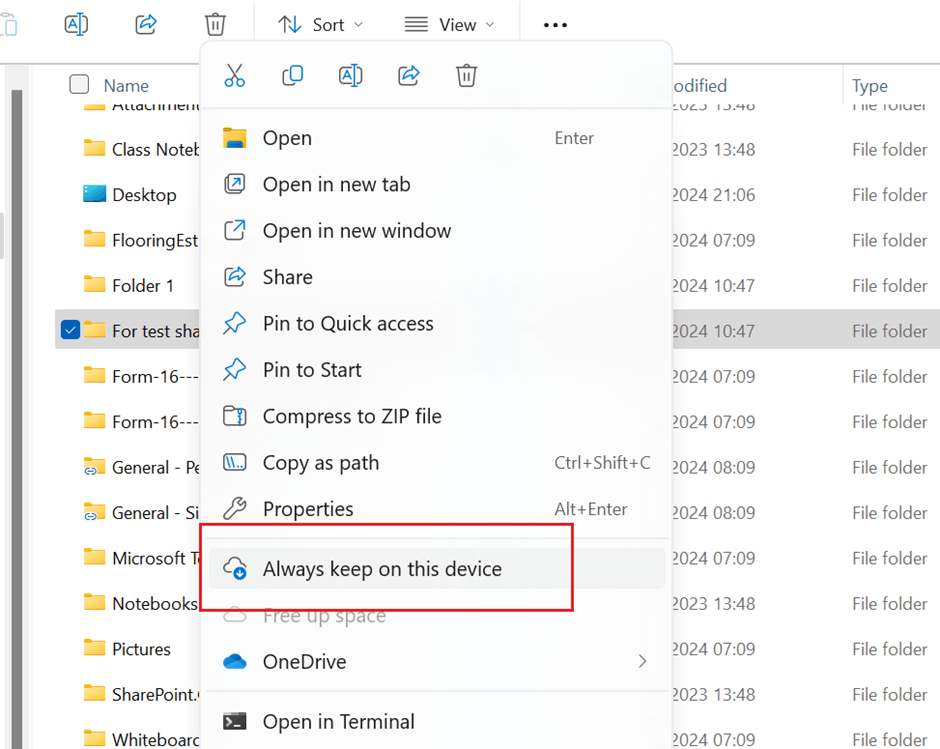
Once files are visible in File Explorer, you can control how they are stored locally using right-click options.
How to Access Sync Options
- Open File Explorer
- Navigate to your SharePoint folder
- Right-click your target file or folder
Available Sync Options
Always keep on this device
- Downloads the file or folder to your computer
- Makes it available offline at all times
- Takes up storage on your computer. This is usually where users inadvertently sync the top/root level folder (eg: Properties) which syncs everything within it, resulting in problems.
Use this option for:
- Files you use frequently
- Documents needed without internet access
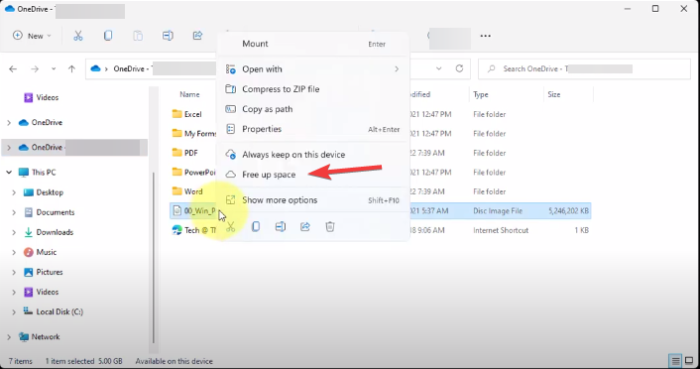
Free up space
- Removes the local copy from your computer
- You can still access the content, if you are online.
- Keeps the file in SharePoint
- File automatically downloads again when opened
- File automatically uploads again when saved
Use this option for:
- Large files
- Content you rarely access
Best Practices for Syncing
OK to Sync Locally
- Active property folders
- Current projects or deals
- Small, frequently used folders
Do Not Sync
Avoid syncing:
- The full “Properties” folder
- Large document libraries
- Archive folders
- Folders with large media files
Syncing large root folders can download extremely large amounts of data and cause system issues.
Signs You Are Syncing Too Much
- Your computer storage is nearly full
- OneDrive shows sync errors
- Files are not updating across users
- Sync is slow or frequently paused
How to Fix Sync Issues
- Pause OneDrive syncing
- Stop syncing large folders
- Right-click large folders and select “Free up space”
- This removes the locally saved copy of the file and changes the file to a shortcut.
- You can still access the file, if you are online.
- Remove unnecessary synced libraries
- Use shortcuts instead
- Resume syncing
Key Takeaway
Do not sync large folders like “Properties.”
Instead:
- Sync only what you actively use
- Use File Explorer options to manage storage
- Use shortcuts for broader access
This ensures better performance, fewer sync problems, and a more reliable experience across your team.
Was this article helpful?
That’s Great!
Thank you for your feedback
Sorry! We couldn't be helpful
Thank you for your feedback
Feedback sent
We appreciate your effort and will try to fix the article