Hello, fellow Microsoft Teams explorer! ?
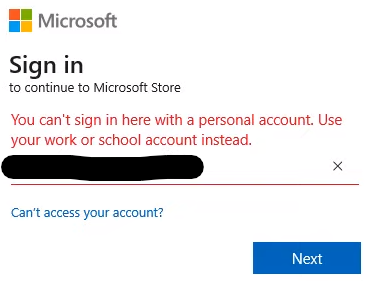
Are you encountering the message "You can't sign in here with a work or school account. Use your personal account instead."? No worries at all – we're here to make sure you're on the right track and ready to roll!
Decoding the Icons:
Microsoft Teams comes in two distinct flavors: one for work and one for play. And guess what? The icons are your guide! The personal-use Teams icon is all about a white background, resembling fresh snow ❄️. On the flip side, the work-use icon is clear and crisp, like a perfectly clean window. Now, when we say "clear," it might mean "whatever the accent color is of your toolbar, or the one that isn't blatantly white."
Microsoft Teams Icons

I've got a white background. Avoid me while at work! I will not log into your work account because I'm for personal use only!

My background is clear/transparent, allowing the accent color of your menus to shine through. Use me! I'm the one for work!
Why Clear is the Choice:
Focus on Work: The icon with the clear background is your work buddy. It's designed to keep you super productive and connected with your colleagues. Meetings, collaborations, all the professional stuff awaits here.
Ditch the White Icon: When you spot the icon with the white background, it's best to skip it. This is the personal zone, meant for casual chats and family moments. We're here to power up your work game, after all! You might be able to right-click it and choose Uninstall to get rid of it completely, should you be able and choose to do so!
Opt for Work: Need to attend meetings, discuss projects, and ace your tasks? Click on the clear icon. You're stepping into the world of productive work and accomplishments.
The Rule to Rule:
Clear is the way to go – remember, no white icon! ?♂️
In a Nutshell:
Time to embrace the clear icon with open arms! It's your ticket to seamless and efficient work in Microsoft Teams. Wave goodbye to the white icon and stride forward confidently!
Was this article helpful?
That’s Great!
Thank you for your feedback
Sorry! We couldn't be helpful
Thank you for your feedback
Feedback sent
We appreciate your effort and will try to fix the article