Overview
Freshdesk allows team members to log time spent on support tickets to ensure accurate tracking of work and resource allocation. This feature is especially useful for reporting, billing, and performance analysis across departments and locations.
How to Log Time in Freshdesk
- Open the Ticket
- Navigate to the ticket you worked on within Freshdesk.
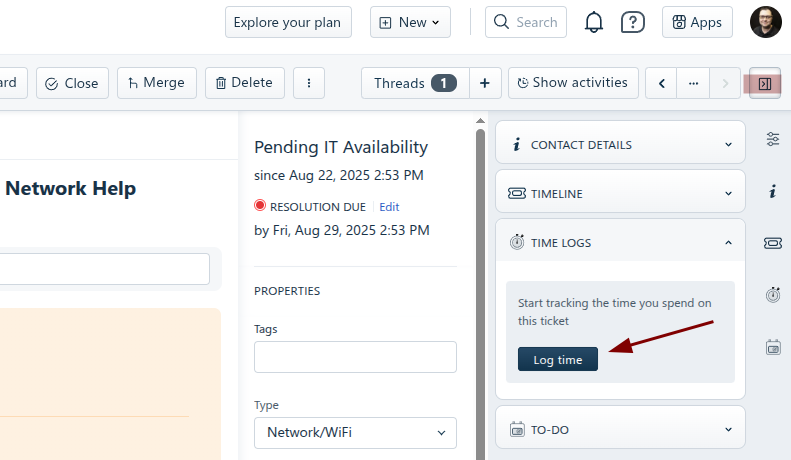
- Click “Log time”
- Use the “Log time” button located in the ticket’s Time Logs section.
- Enter Time Details
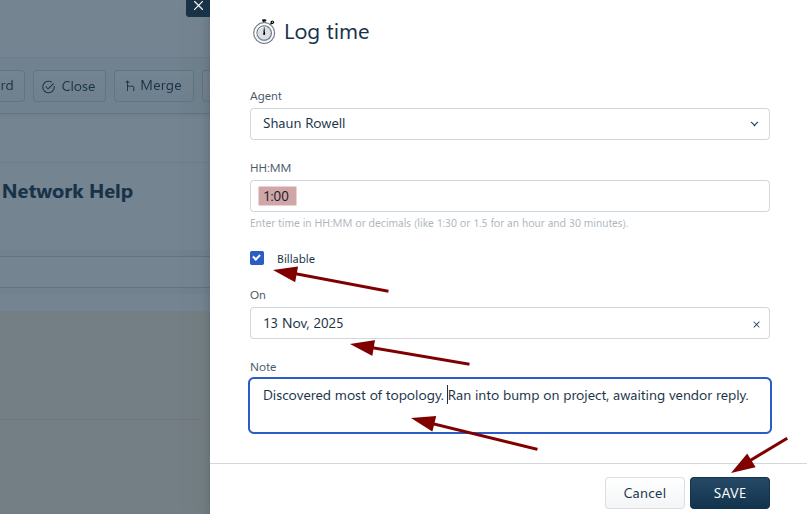
- Agent: Automatically populated based on who is logging the time.
- HH:MM Time Spent: Enter the duration in minutes or hours.
- Billable: See step 4, below.
- Leave blank if you want it to time you and you'll stop the timer manually later.
- Note: Provide a brief description of the work performed.
- Check “Billable” if Applicable
- Important: Only check the “Billable” box if the time logged was spent working at a site outside of corporate headquarters (LSQ-6N).
- This ensures accurate billing and cost allocation for off-site support.
- This can also apply should a non-corporate requestor creating a ticket is asking for help that takes longer than 30 minutes.
- Save the Entry
- Click “Save” to record the time. The entry will now appear in the ticket’s time log.
- These can be edited and removed later if needed for auditing toward precision.
Stopping and Finalizing Timer
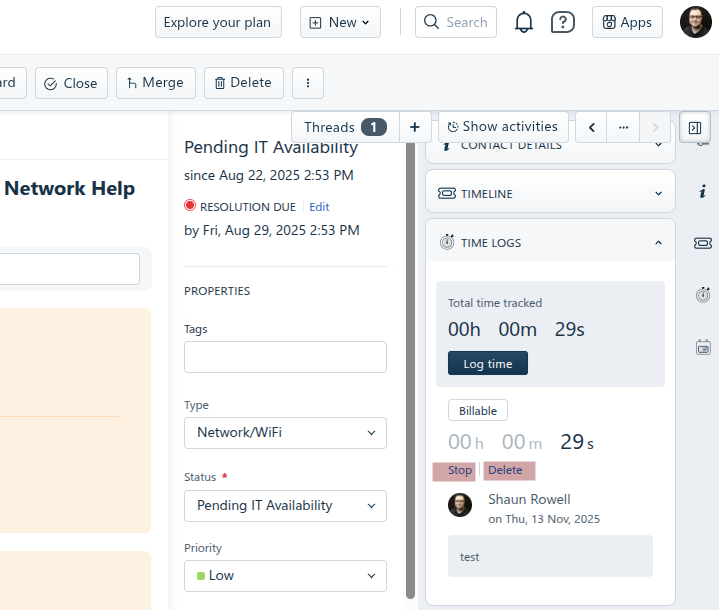
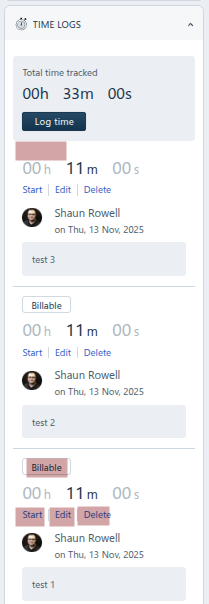
The timer can be either deleted or stopped, then subsequently restarted, edited, or deleted.
Best Practices
- Be Specific: Use clear, brief notes to describe the work done. Reflect the details and context within notes/emails instead, as appropriate.
- Log Promptly: Record time as soon as possible after completing the task to ensure accuracy.
- If you forget, create a manual entry using best effort, remaining as precise as reasonably possible.
- Review Weekly: Managers should review time logs weekly to ensure proper billing and workload distribution.
This practice applies for any and all tickets received for requestors who are not at Leadership Square floor 6 North Tower (Corporate HQ), and especially applies for off-site visits.
Was this article helpful?
That’s Great!
Thank you for your feedback
Sorry! We couldn't be helpful
Thank you for your feedback
Feedback sent
We appreciate your effort and will try to fix the article